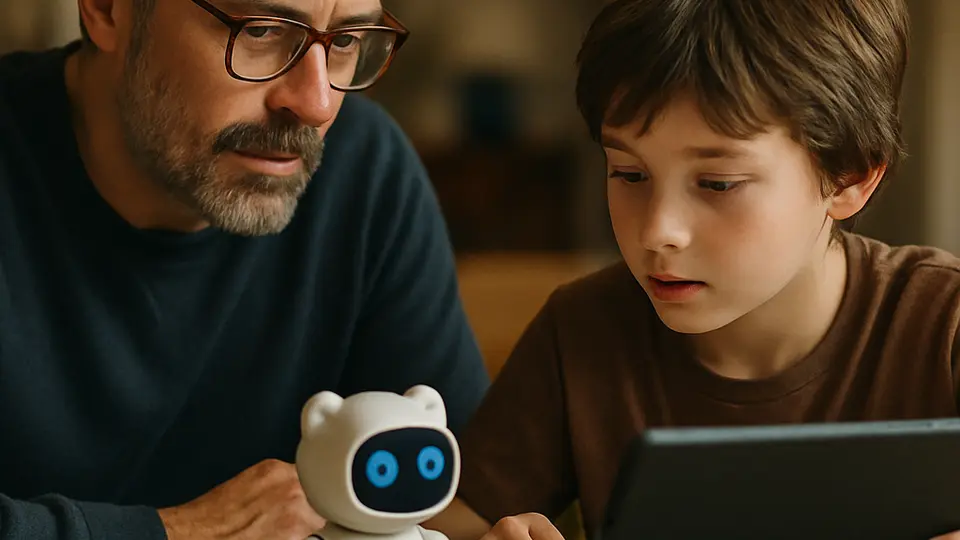
ChatGPT, Gemini, and Copilot each have different age minimums and different tools for parents. None offers a perfect child-safe mode, but each can be made safer with a family account setup. This guide walks through all three side by side so you can compare and act on only the apps your family uses.
Your child is likely already aware of AI assistants — or already using one. The question is not whether to allow it, but how to set it up so you have some visibility into what is happening. This guide covers the three most common AI apps — ChatGPT, Google Gemini, and Microsoft Copilot — and what each one actually offers for families right now.
Know the age limits before you start
Each platform sets its own minimum age, and knowing the rules matters before you create or adjust any account.
ChatGPT (OpenAI): The minimum age is 13. Users between 13 and 17 are supposed to have parental consent, though the age gate is self-reported. In some countries, the minimum is higher due to local data privacy laws.
Google Gemini: Users under 13 have Gemini blocked by default on supervised accounts — parents must enable access through Google Family Link. Teens 13 and up with a supervised Google account may have restricted access depending on settings.
Microsoft Copilot: The minimum age is 13. Microsoft Family Safety can be used to manage a teen's access and set content filters on their Microsoft account.
Here is a quick side-by-side comparison of what each platform currently provides:
| App | Min Age | Family Account Required | Content Filter | Activity Log |
|---|---|---|---|---|
| ChatGPT | 13+ (parental consent for under 18) | No dedicated family plan | Default filters; 'Reduce sensitive content' toggle available via linked teen account | Chat history visible on shared account only |
| Gemini | 13+ standard; under 13 accessible if parent enables via Family Link | Yes — Google Family Link | Supervised account restrictions | Email alert on first use; no conversation log |
| Copilot | 13+ with Family Safety | Yes — Microsoft Family Safety | Content filters via Family Safety dashboard | Activity reports in Family Safety |
None of these tools is designed specifically for children. They are general-purpose AI assistants that have added some family-account features. Keep that in mind as you work through the steps below.
Set up ChatGPT — see the dedicated guide
ChatGPT has the most nuanced setup of the three, so there is a full guide dedicated to it: ChatGPT Parental Controls and Safe Setup for Kids. It covers checking for existing accounts, creating a shared account, adjusting privacy settings, and layering in device-level controls.
The short version: the safest arrangement is a shared account managed under a parent email address where you control the password and can see the full conversation history. If your teen already has their own account, check that the correct age was entered and that the Memory feature is turned off under Settings. There is currently no separate child profile or parent dashboard in ChatGPT.
Configure Google Gemini with Family Link
Google Family Link is Google's parental supervision tool. It links your child's Google account to yours and gives you oversight over certain apps and settings.
To set up Family Link:
- Open the Google Family Link app on your phone (or download it from your app store).
- Follow the prompts to add your child's Google account. Children under 13 require a parent-managed account, which you will create during setup.
- Once linked, you can approve app downloads, set daily screen time limits, and manage account-level settings from the Family Link dashboard.
What Family Link does for Gemini:
For supervised accounts belonging to users under 13, Gemini is blocked by default — parents can enable it through Family Link settings, though the Gemini web app remains unavailable for all supervised accounts. For teens 13 to 17 with a supervised account, access may be limited depending on the specific settings you choose.
One important limitation: a supervised Google account does not give you a transcript of what your teen asked Gemini. The main control is access management, not conversation monitoring.
Set up Microsoft Family Safety for Copilot
Microsoft Family Safety works similarly to Google Family Link. It connects your child's Microsoft account to a parent-managed family group and lets you control settings from a central dashboard.
To set this up:
- Sign in to your Microsoft account at account.microsoft.com or open the Microsoft Family Safety app.
- Go to Family Safety and choose "Add a family member." Follow the prompts to invite or create your child's account.
- Once they are part of your family group, you can set content filters, screen time limits, and spending limits from the Family Safety dashboard.
What Family Safety does for Copilot:
Content filters configured in Family Safety apply across Microsoft products, including Copilot. The filters are designed to block explicit material. You can also access activity reports that show search queries and websites visited through Microsoft services.
As with the other platforms, these controls limit what is easily accessible rather than creating a fully monitored conversation log.
Test each app with your child present
After configuring controls, spend ten minutes with your child using each app together. Try a prompt or two that you would want a filter to catch — something clearly age-inappropriate, or a request for dangerous information. See what happens.
This confirms that the controls are working as you expect, and — more importantly — it gives you a shared reference point with your child. They see what gets blocked, and you both talk about why. That conversation is more useful than any single setting.
Do not be surprised if some test prompts get through. No filter catches everything, and naming that out loud with your child when it happens is worthwhile.
Talk to your child — controls are a starting point
Parental controls slow things down. Conversation changes behavior.
A few things worth covering whenever the topic comes up naturally — not in a single formal sit-down, but over time as context arises:
AI tools make mistakes and can sound more confident than they should. Important facts need to be checked elsewhere. Anything typed into an AI goes to a company's servers, so personal details — home address, school name, phone number — should stay out of it. And if they see something in an AI conversation that confuses or bothers them, they should be able to bring it to you without worrying about getting in trouble for the question.
These points land better in the moment than in a lecture. When homework comes up, when a news story mentions AI, when they ask you something about it — those are the natural openings.
What to try next: For a deeper look at ChatGPT on its own — account options, privacy settings, and device-level controls — ChatGPT Parental Controls and Safe Setup for Kids covers each step in full. And for a five-minute family safety project you can do right now, Safe Words for Families explains how to set up a code word that protects against voice scams — a useful addition to any conversation about online safety.