Using ChatGPT starts with creating a free account at chatgpt.com. Once you are logged in, you type your question or request into the message box and press Enter. ChatGPT writes back a detailed response within seconds — no special skills required.
If you have never used ChatGPT before, this guide walks you through everything from creating your account to getting a genuinely useful answer. The whole process takes less than 10 minutes.

The ChatGPT home screen right after signing in — our own screenshot, 31 July 2026.
You do not need any technical experience. If you can send an email, you can use ChatGPT.
Go to chatgpt.com
Open any web browser — Chrome, Safari, Edge, or Firefox all work fine. In the address bar at the top, type chatgpt.com and press Enter.
You will land on the ChatGPT homepage. It has a simple message box in the center and a "Sign up" button near the top right. If you already have an account, click "Log in" instead.
Create your free account
Click the Sign up button. OpenAI will ask you to create an account.
You have four options: sign up with your email address, or use an existing Google, Microsoft, or Apple account (these are faster and skip the email verification step). Many people find the Google option easiest — just click 'Continue with Google' and pick the Google account you want to use.
If you sign up with email, you will receive a confirmation email. Open it and click the verification link to activate your account.
Complete the short setup
After verifying your account, OpenAI may ask for your first name and date of birth. Fill those in and click Continue.
You might also see a screen offering you a free trial of ChatGPT Plus (the paid plan). You can safely skip this for now — click "Stay on free plan" or the equivalent option. The free version is everything you need to start.
Find the message box and type your first question
Once you are logged in, you will see a clean screen with a text box near the bottom that says something like "Message ChatGPT." Click on it — your cursor will appear inside the box.
Now type a real question or request. Here are a few ideas to try your very first time:
- "Explain what a credit score is in simple terms."
- "Write a short thank-you email to my doctor's office."
- "Give me five easy dinner ideas for a family of four."
Type your message and press Enter on your keyboard (or click the arrow button to the right of the box).
Read the response and ask a follow-up
ChatGPT will start typing its response almost immediately — you will see the words appear word by word, like someone typing back to you. This usually takes just a few seconds.
Read the answer. If something is unclear or you want more detail, just type another message. For example: "Can you make that even simpler?" or "Give me three more dinner ideas with chicken."
This is the key habit to build: ChatGPT is a conversation, not a one-time search. Going back and forth with follow-up messages usually gets you much better results than a single question.
Start a new conversation when you switch topics
Each conversation in ChatGPT stays together as a thread. ChatGPT remembers what was said earlier in the same conversation, which is useful for follow-up questions.
When you want to ask about something completely different, start fresh. Look for the New chat button in the top left corner (it looks like a pencil or a plus sign). Click it to open a blank conversation. Your old conversations are saved on the left side panel — you can click on any of them to go back.
Adjust your privacy settings
Before you use ChatGPT regularly, it is worth taking two minutes to check your privacy options.
Click your name or profile icon at the bottom left of the screen, then choose Settings. Go to Data controls. You will see an option called something like "Improve the model for everyone" — if you prefer that OpenAI not use your chats for AI training, toggle that off.
For a full walkthrough, see our ChatGPT privacy settings guide.
Tips for Getting Better Answers
A few habits that make a big difference:
Be specific. Instead of "help with my resume," try "help me rewrite the work experience section of my resume for a retail manager job — I have 8 years of experience."
Tell it your situation. "I am 62 years old and have never invested before — explain a Roth IRA in simple terms" gets a much more useful answer than just "what is a Roth IRA."
Ask for a different format. If the answer is too long, say "Give me that as a short bullet list." If it feels too technical, say "Explain that more simply."
Push back when something seems off. ChatGPT can make mistakes. If an answer does not sound right, say so. It will often correct itself or admit uncertainty when challenged.
What Not to Share With ChatGPT
ChatGPT is a helpful tool, but treat it like any online service: do not paste in your Social Security number, passwords, full credit card numbers, or other sensitive personal information.
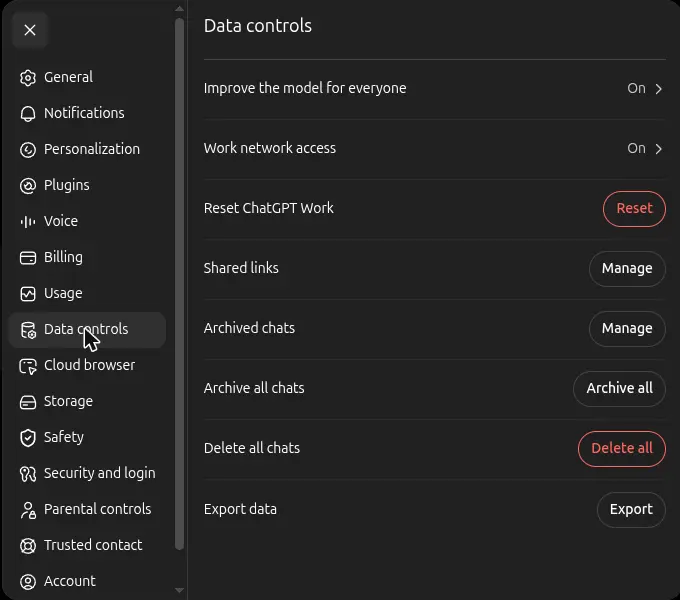
Settings → Data controls, where you turn off training on your chats — our own screenshot, 31 July 2026.
What to Try Next
Now that you know the basics, put ChatGPT to work on something real. If you have a work email you have been putting off, writing a professional email with AI shows you exactly how to do it. Curious how ChatGPT stacks up against Google's AI assistant, Gemini? Read ChatGPT vs Gemini to see which one might suit you better.
Sources
- ChatGPT plans and pricing — OpenAI
- Data Controls FAQ — OpenAI
- Usage policies — OpenAI