The best AI photo editor depends on what you need. For quick touch-ups and background removal, Canva Magic Edit and Adobe Firefly are easy for beginners. For portrait enhancement, Remini and Snapseed do great work on phones. Most tools offer a free tier, so you can try before you pay.
You don't need to be a graphic designer to make your photos look great. AI photo editors do the heavy lifting — fixing lighting, removing backgrounds, erasing unwanted objects — with just a tap or click. The tricky part is knowing which tool to reach for.
Here's a plain-English breakdown organized by what you actually want to do.
At a Glance: Which Tool for Which Job
| Use case | Best free option | Best paid upgrade |
|---|---|---|
| Remove background | Adobe Firefly (free credits) | Adobe Firefly (premium credits) |
| Portrait touch-up | Snapseed (Portrait mode) | Remini Pro |
| Fix blurry / old photos | Remini (free tier) | Topaz Photo AI |
| Change or swap background | Canva | Adobe Photoshop AI |
| Remove an object or person | Snapseed (Healing tool) | Samsung Galaxy AI, Apple Clean Up |
| Add AI-generated elements | Adobe Firefly | Adobe Firefly (premium credits) |
| Quick one-tap enhance | Google Photos (Magic Eraser, Unblur) | Lightroom AI |
| Creative filters and effects | PicsArt | PicsArt Gold |
The Tools, One by One
Canva Magic Edit — Best for Beginners
Canva started as a graphic design tool, but its AI photo editing features have become genuinely useful for everyday photos. Magic Edit lets you brush over part of a photo and type what you want — "remove the car" or "add a sunset sky." The Background Remover works in one click. Note: the one-click Background Remover is a Canva Pro feature ($15/month) — it is not included in the free plan.
It runs entirely in your browser, so nothing to install. The free plan covers most basic edits.
Best for: People who want simple, visual editing without learning new terms.
Snapseed — Best Free Mobile App
Snapseed is a Google app that's been around for years, and it's still one of the best free photo editors on phones. The Healing tool removes objects (tap and paint over whatever you want gone). The Portrait and Face Enhance tools smooth skin, brighten eyes, and fix lighting — all on-device, so your photos don't go to any server.
Best for: Phone editing, privacy-conscious users, anyone who wants a capable free tool.
Remini — Best for Fixing Old or Blurry Photos
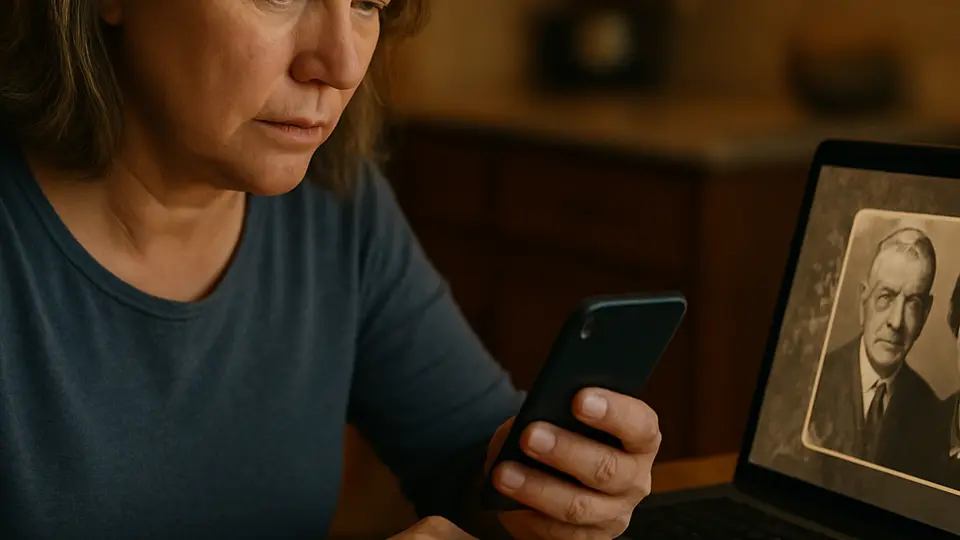
Remini uses AI to sharpen and enhance photos that are blurry, low-resolution, or old. Upload a fuzzy photo and it comes back noticeably clearer. It also does portrait enhancement that can make faces in photos look more detailed.
The free tier lets you do a limited number of enhancements per day. The paid subscription price varies by offer and billing cycle — check the current price inside the app before subscribing. The free version adds watermarks to enhanced photos.
Best for: Restoring old family photos, fixing blurry snapshots.
Adobe Firefly — Best for Creative Edits
Adobe Firefly is Adobe's AI tool that's built into products like Photoshop and Express, and also available standalone at firefly.adobe.com. You can remove objects, extend the edges of a photo (called Generative Fill), or add something entirely new by typing a description.
The standalone browser version has a free tier with a monthly credit allowance.
Best for: Users who want creative, generative edits — adding or changing parts of a scene.
Google Photos — Best If You Already Use It
If you store photos on Google Photos, you already have access to several AI tools: Magic Eraser removes distracting objects, Unblur sharpens faces, and Photo Unblur works on older snapshots. These are built right into the app — no separate tool needed.
Magic Eraser, Unblur, and Photo Unblur are free for all users. The more powerful Magic Editor is limited to 10 saves per month on the free plan — unlimited access requires a Pixel device or a Google One Premium (2TB+) subscription.
Best for: People who already use Google Photos for storage.
Lightroom AI — Best for Multiple Photos at Once
Adobe Lightroom's AI tools (Denoise, Masking, Enhance) are powerful for editing a batch of photos at once — useful if you take a lot of pictures and want them all looking consistent. It's more of a "photographer's tool," but the AI features make it much more accessible than it used to be.
Best for: Anyone with a larger photo library who wants AI-assisted batch editing.
Fotor — Best Web Alternative to Canva
Fotor is a browser-based editor similar to Canva with strong AI features: one-click background removal, AI portrait retouching, and an AI image enhancer. The interface is clean and beginner-friendly.
The free tier has watermarks on some outputs; the Pro plan costs $8.99/month (less on an annual plan) and removes all watermarks.
Best for: People who want an alternative to Canva with similar simplicity.
What You Don't Need to Pay For
Many of the most useful AI photo features are already free:
- Snapseed (full app, no subscription)
- Google Photos Magic Eraser (free for basic use)
- Adobe Firefly browser tool (limited free credits)
You only need a paid plan if you edit a large volume of photos or need advanced features like batch processing or higher export quality.
A Note on Privacy
When you upload a photo to any AI tool, it goes to that company's servers. For casual shots, this is usually fine. For photos of children, medical images, or anything sensitive, stick to on-device tools like Snapseed or Google Photos (which processes on your own device when possible).
What to try next
Once you know your editor, learning to remove specific objects or people from photos takes just a few minutes. If you want to go further with creating new visuals, the beginner's guide to creating AI images for free walks through the options.